In our increasingly digital world, many of us have a variety of devices connected to our home Wi-Fi networks at any given time. From smartphones and laptops to smart TVs and tablets, these gadgets make life convenient, entertaining, and connected. However, this connectivity can come with a downside: a congested network that feels more like a traffic jam than a speedy highway. If your Wi-Fi seems slower than usual, it might be time to declutter your network. This guide is designed for beginners who want to ensure their Wi-Fi is operating efficiently by checking for devices that may be hogging bandwidth and resetting their network for optimum performance.
First, let's tackle the issue of identifying which devices on your network may be consuming excess bandwidth and slowing things down. A straightforward way to check is by accessing your router's settings. Each router brand may differ slightly, but generally, the process involves typing the router’s IP address into your web browser. This IP address is often something like 192.168.1.1 or 192.168.0.1, but you can find your specific address in the router’s manual or on its rear panel.
Once you have accessed the router's web interface, you will need to log in. If you have never changed your login details, the default username and password are often something like "admin" and "password." However, it is always a good practice to set your own strong password to prevent unauthorized access. After logging in, navigate to the section that lists connected devices. This section may be labeled differently depending on your router but look for terms like "Device List," "Attached Devices," or "Connected Devices."
Here, you will see a list of all devices currently using your network. Take note of any unfamiliar devices, as these could be harmless but inactive devices or unauthorized users who have gained access to your Wi-Fi. Check the names and MAC addresses of each connected device. If you notice that there are old devices you no longer use, consider disconnecting or deleting them from the network.
Next, observe which devices are using the most bandwidth. Some routers display real-time usage statistics next to each device, which can help you determine bandwidth drainers. Devices streaming HD videos, downloading large files, or performing other data-intensive activities typically consume more bandwidth. If these devices aren't being used frequently, you can temporarily disconnect them or set limits on bandwidth usage if your router supports it.
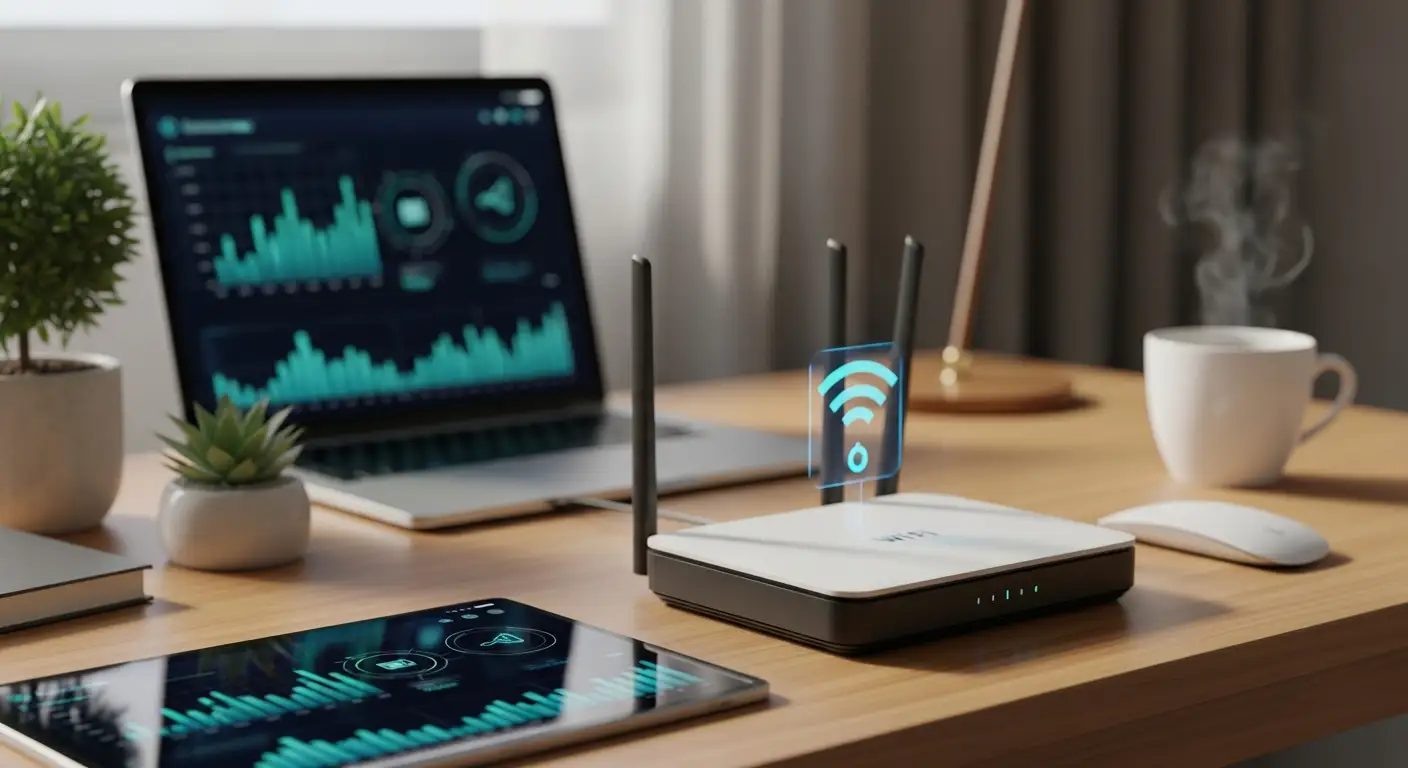
Now that we've decluttered unnecessary devices, let's address how to give your network a fresh start by resetting it. This process can often help clear minor glitches and improve overall performance. First, locate the power button on your router. If there's no designated off switch, you can unplug the router from the power outlet.
Leave the router unplugged for approximately 60 seconds. This pause allows the router to fully power down, clearing cache and IP address conflicts that may have developed while various devices connected and disconnected over time. Once you've waited, plug the router back in or switch it back on.
Allow a few minutes for the router to reboot fully. After it has powered back on, you can review your network performance. Test your internet speed using an online speed test tool to see if there's an improvement. Free tools such as Speedtest by Ookla or Fast.com provide a quick and straightforward way to measure your connection speed.
Lastly, a bit of routine maintenance can go a long way in keeping your network functioning well. Make it a habit to occasionally check for firmware updates for your router, as manufacturers often release updates to enhance performance and security. Additionally, consider reorganizing your Wi-Fi setup by relocating your router if you find areas in your home suffer from poor signal strength. Placing the router in a central, elevated location can help to ensure a more even distribution of signal, improving connectivity speeds throughout your home.
By following these steps, you can more effectively manage your home Wi-Fi network and enjoy faster, more reliable internet access. With just a little proactive care and occasional monitoring, your Wi-Fi can become a smooth-running hub for all your connected devices, keeping pace with your digital lifestyle. Happy surfing!